為了讓剪輯更順利,請您依以下步驟準備素材
(這樣可以大幅降低溝通成本與來回修改的時間)

操作重點整理:
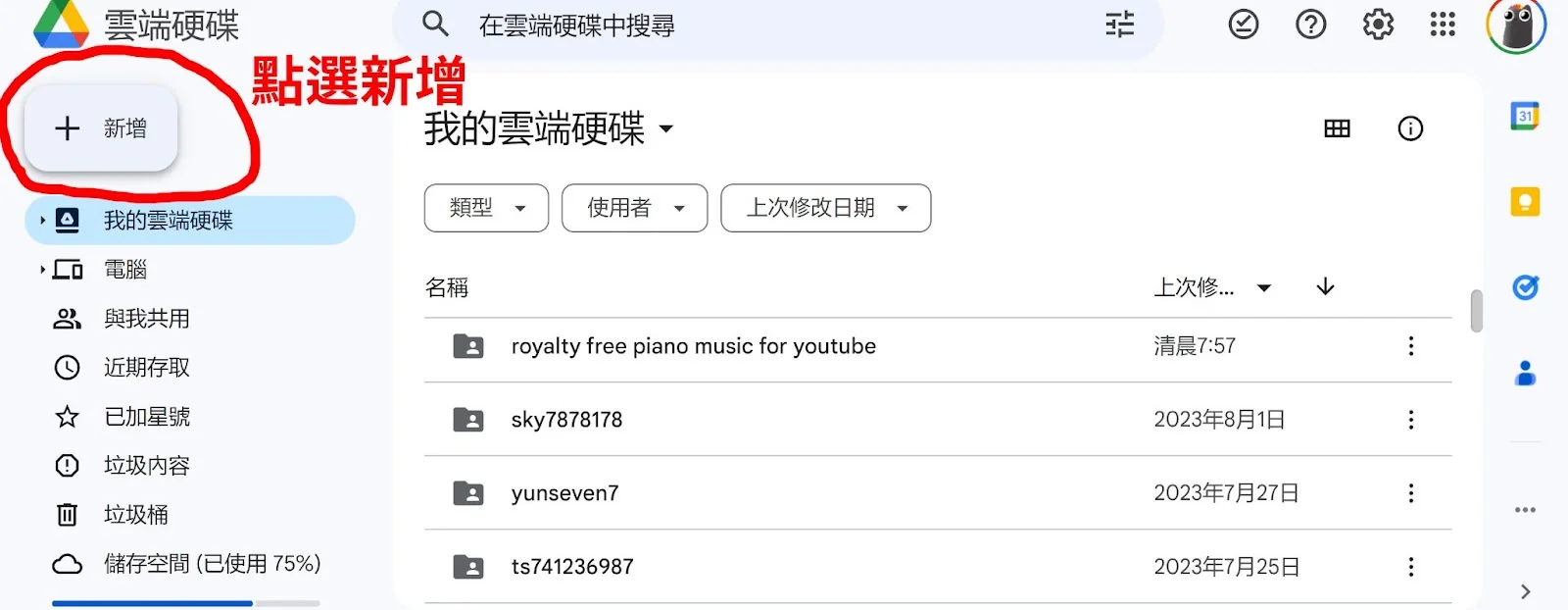
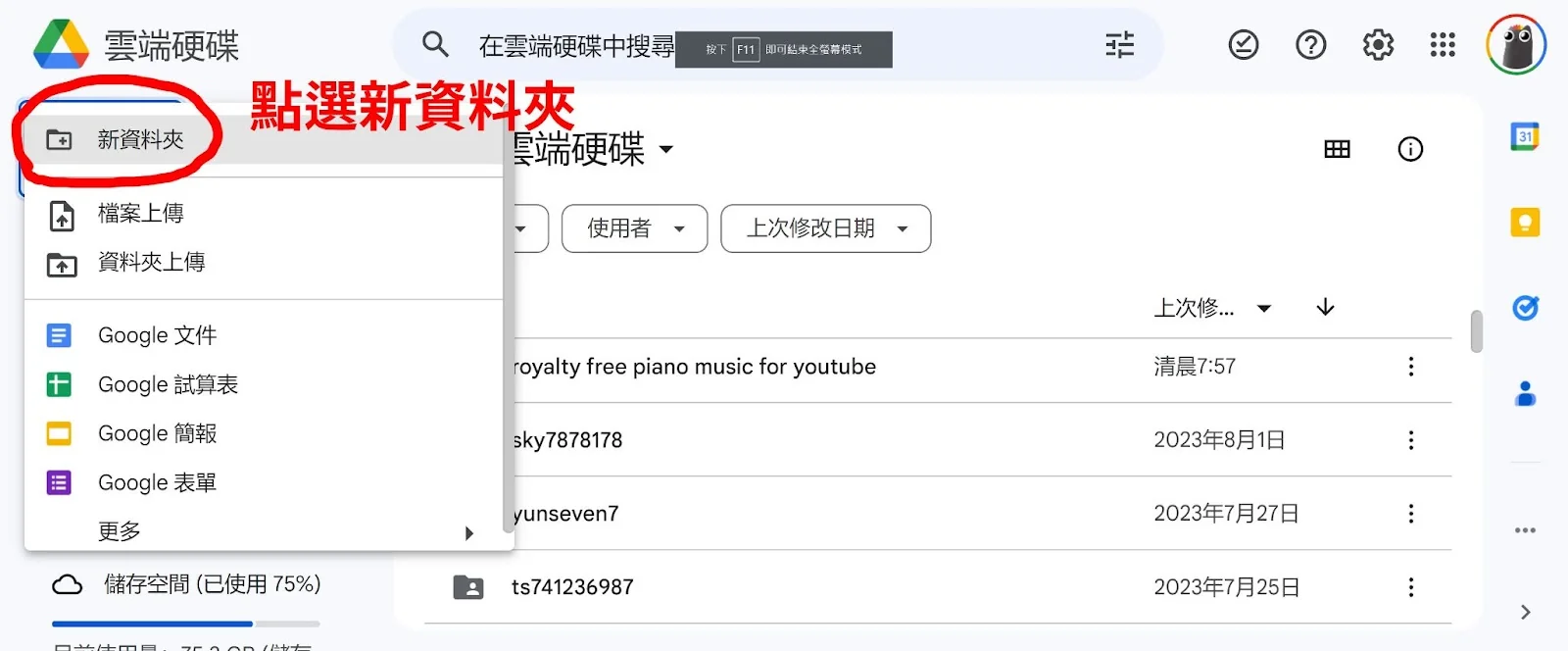
1.建立 Google Drive 資料夾
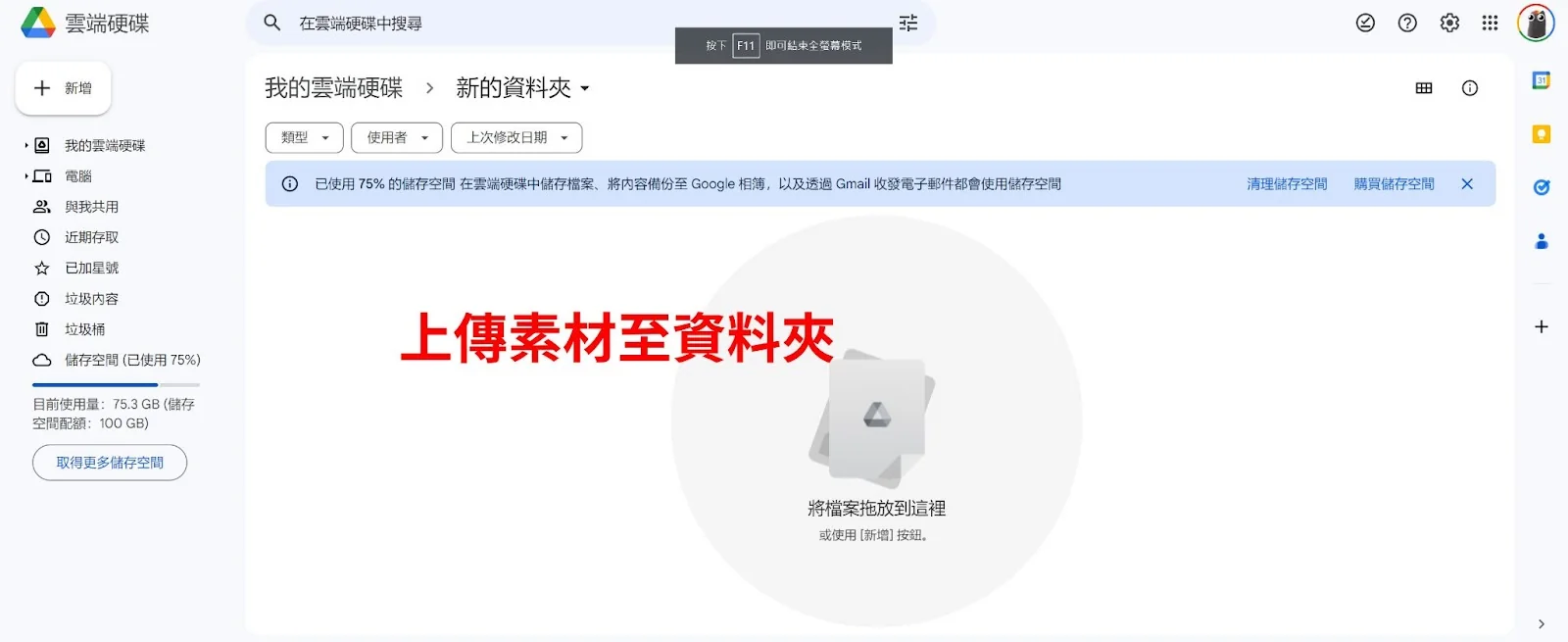
2.上傳影片/照片/LOGO 等素材
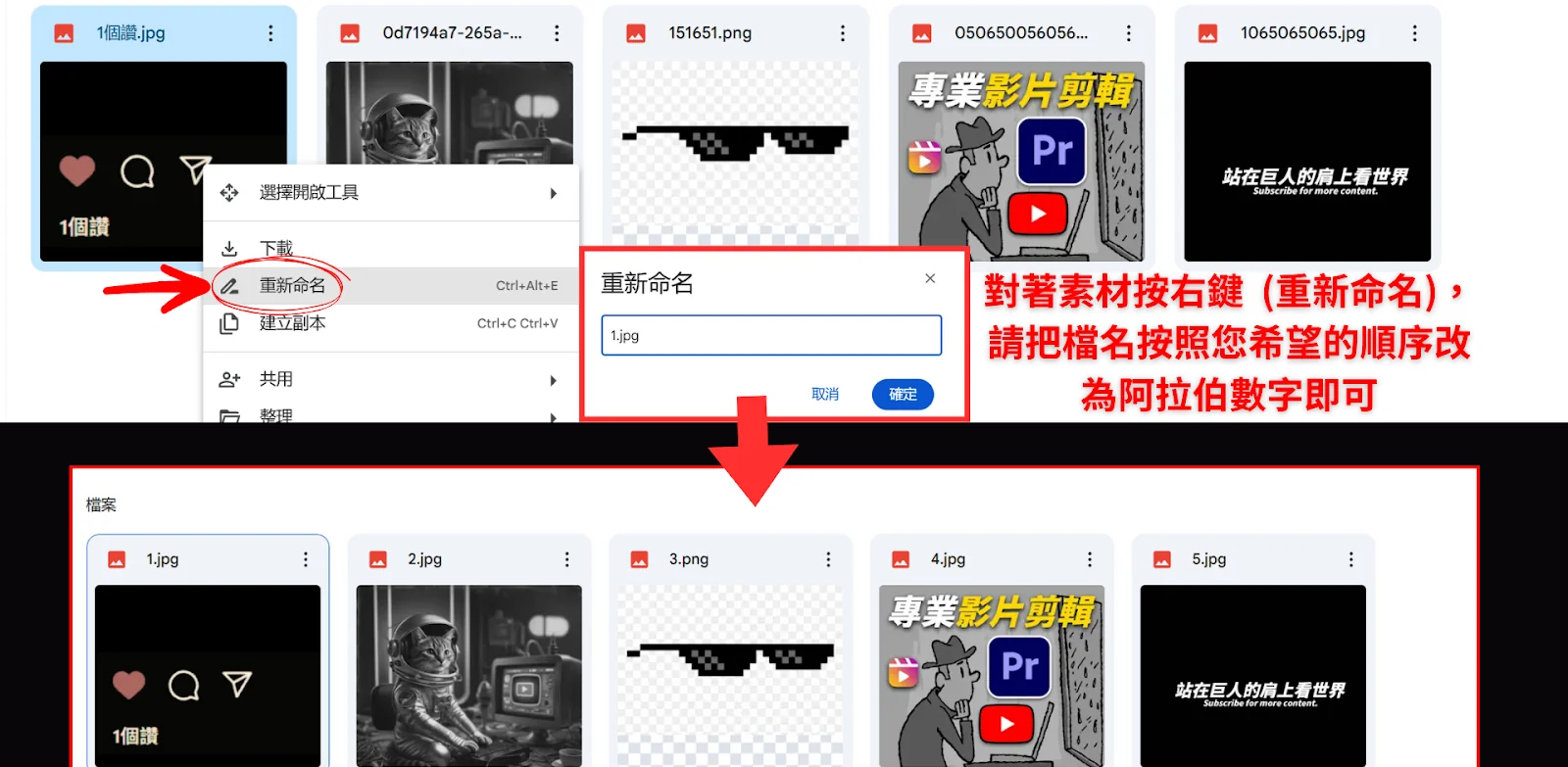
3.將每個檔案依剪輯順序重新命名為阿拉伯數字(如:1、2、3、4、5)
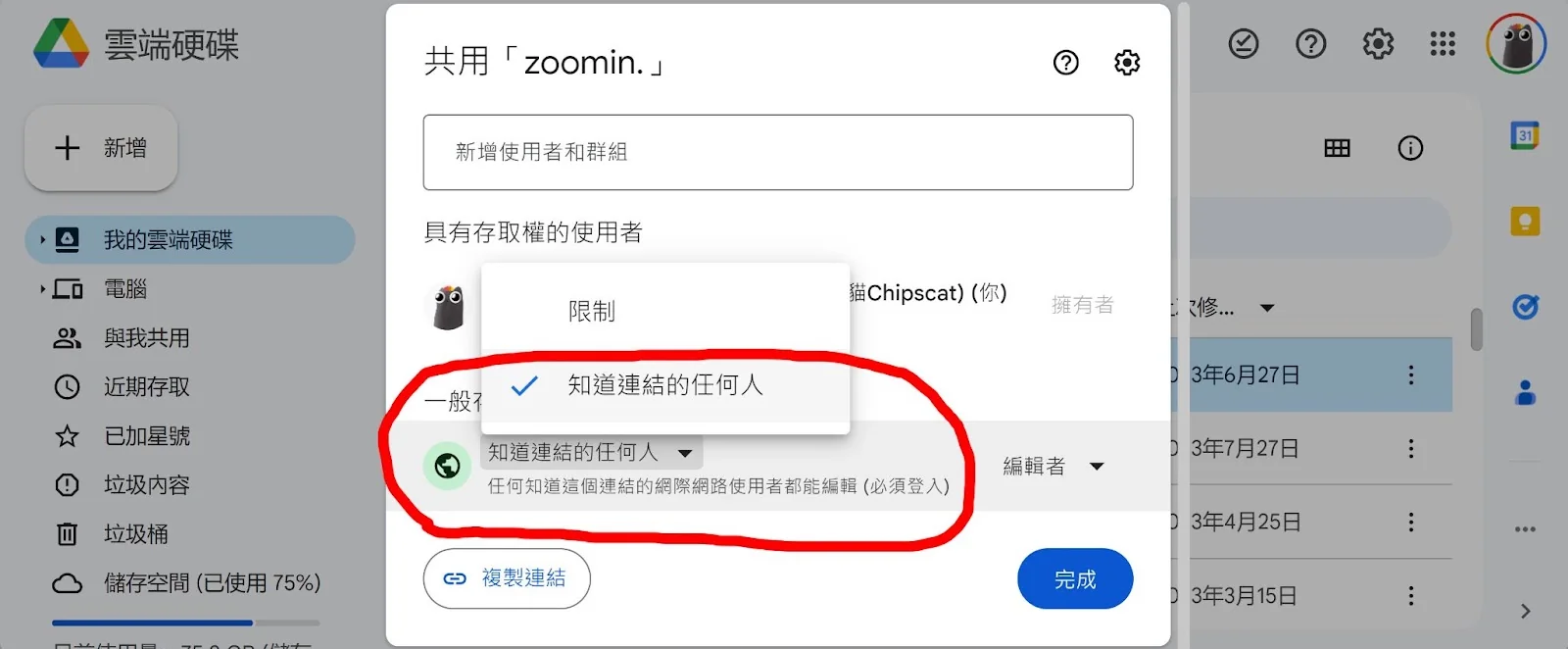
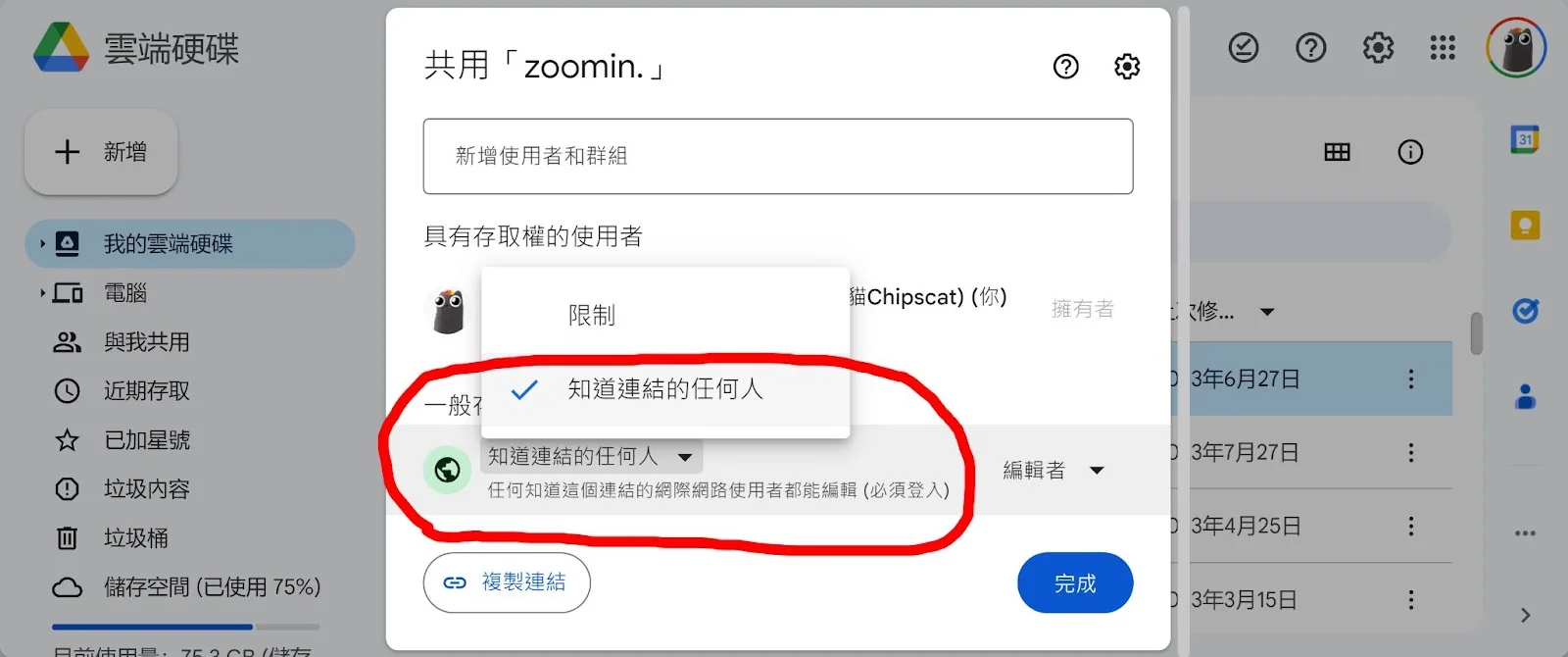
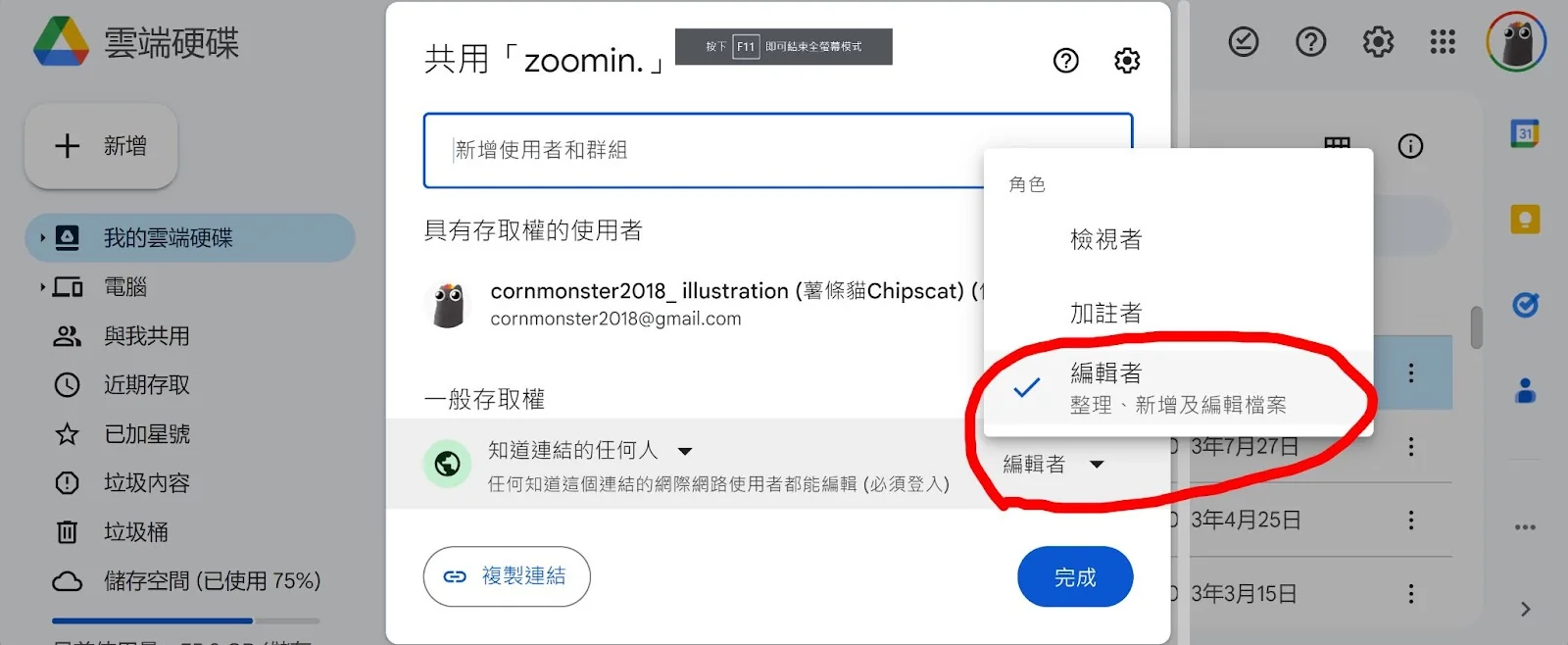
4.設定資料夾權限為:「知道連結的任何人可編輯」
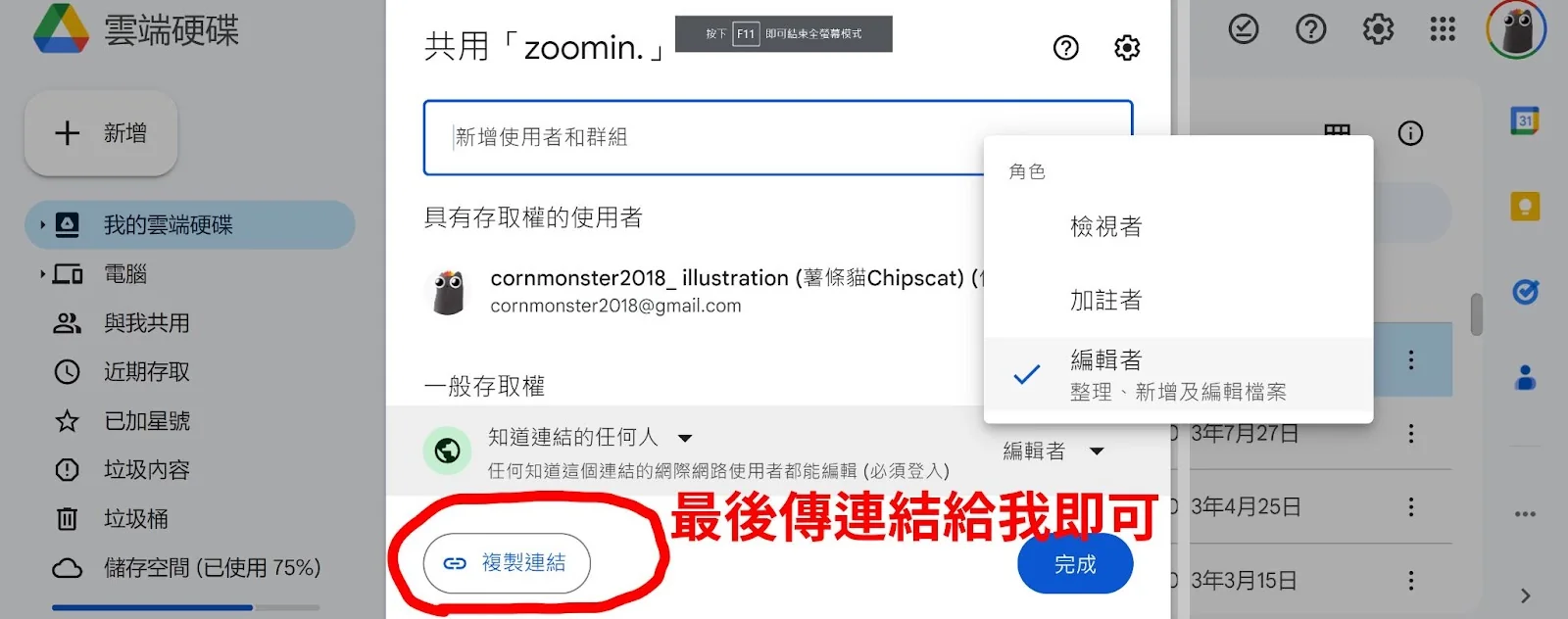
5.將 Google Drive 資料夾連結傳送給我們即可
圖文教學
步驟一:建立資料夾並上傳素材
1. 前往 Google Drive 並登入帳號
2. 點選左上角「+新增」→ 建立【資料夾】(命名如:剪輯素材_小明)
3. 點進資料夾 → 將影片、照片、LOGO 一次上傳進去
步驟二:簡單排順序
若您希望影片照某個順序呈現,建議將檔案名稱改成:
1.jpg、2.mov、3.jpg、4.mov…(只改數字即可)
我們會依此順序剪輯
請保留副檔名(例如 .jpg / .mp4)
步驟三:附上簡單影片說明
您也可以提供 Word 或 Google 文件說明(如有),例如:
- 1.jpg → 加文字「品牌理念」
- 2.mov → 用第15~40秒,加字幕「讓笑容更自信」
這能幫助我們更準確掌握您想要的內容風格
步驟四:設定共用連結
1. 在資料夾上點右鍵 → 選【共用】
2. 點選「取得連結」→ 設定為「知道連結的任何人可編輯」
3. 點【複製連結】→ 傳給我們即可
若操作中有任何問題,歡迎隨時詢問,我們都會協助您。連結對方打不開的話,請看分享權限常見錯誤與解法;MOV 要不要轉檔,請看MOV 和 MP4 差在哪。
For Desktop/Laptop Users – How to Upload Materials to Google Drive
To ensure a smoother editing process, please follow the steps below
(This will greatly reduce communication costs and the time spent on revisions)
Key Steps Summary:
- Create a folder in Google Drive
- Upload all videos / photos / logos into the folder
- Rename each file with Arabic numbers according to the desired editing order (e.g., 1, 2, 3, 4, 5)
- Set the folder permission to “Anyone with the link can edit”
- Send us the Google Drive folder link
Step 1: Create a Folder and Upload Materials
1. Go to Google Drive and sign in to your account.
2. Click “+ New” in the top left → select “Folder” (name it something like Editing_Materials_Xiaoming).
3. Open the folder → upload all videos, photos, and logos together into this folder.
Step 2: Arrange File Order
If you’d like the video to follow a specific sequence, we recommend renaming the files as:
1.jpg, 2.mov, 3.jpg, 4.mov… (only change the numbers).
We will edit the video according to this order.
Please make sure to keep the file extension (e.g., .jpg / .mp4).
Step 3: Add a Simple Video Description
You can also provide a Word or Google Doc with instructions (if available). For example:
- 1.jpg → Add text overlay: “Brand Philosophy”
2.mov → Use 00:15–00:40 with subtitle: “Making smiles more confident” - This helps us better capture the content style you’re looking for.
Step 4: Set Up a Shareable Link
1. Right-click the folder → select “Share.”
2. Click “Get Link” → change the setting to “Anyone with the link can edit.”
3. Click “Copy Link” → send it to us
If you encounter any issues during the process, please feel free to reach out—we’re always happy to help